Updated SDK to EOS SDK 1.20.0
NEW
Anti-Cheat
- Get System Config returns the client’s system security configuration.
- Get Persistent Setting and Set Persistent Setting read and write anti-cheat settings that are kept between game sessions, such as the strict injection policy. Windows only.
- Register Client on the Anti-Cheat Server has a new Required System Config option. A client must meet it to join the protected session.
Auth
- Cancel Login cancels an ongoing Account Portal or device code login. It is available as a function and as an async node.
- New login flags: No User Interface and No Internal Retry.
- Account Portal Redirect URL lets mobile games use an iOS Universal Link or Android App Link for the Account Portal login.
- iOS Auth Handle Redirect URL completes a mobile Account Portal login from the URL your iOS app receives.
Presence
- Has Explicit Presence.
PROJECT SETTINGS
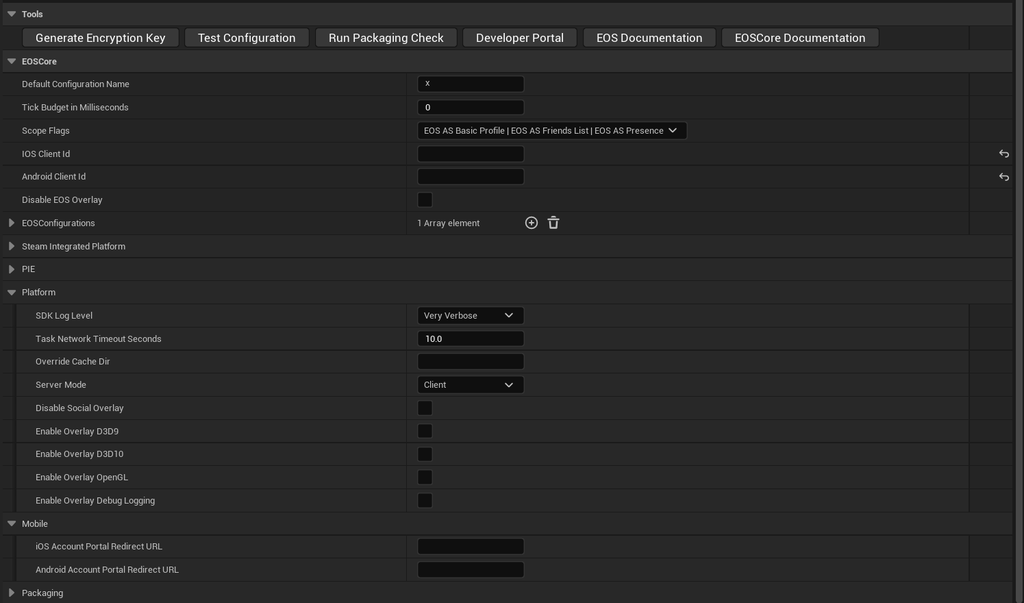
Find these under Project Settings > Game > EOSCore Plugin.
- SDK Log Level, Task Network Timeout Seconds and Override Cache Dir can now be set in Project Settings instead of only in
DefaultEngine.ini. - Server Mode decides when EOS runs as a server:
- Client is the default and works as before.
- Automatic runs dedicated servers as servers. Use it only if your dedicated server does not log in with a Device Id.
- Server always runs EOS as a server.
- Overlay options: Disable Social Overlay, Enable Overlay D3D9, D3D10 and OpenGL, and Enable Overlay Debug Logging.
- iOS and Android Account Portal Redirect URL set a default redirect URL for the mobile Account Portal login.
- EOSCore now warns you in the editor and in the log when a configuration still uses the default Encryption Key.
EDITOR TOOLS
Tools in the EOSCore settings
- Generate Encryption Key creates a unique key for every configuration that has no key, an invalid key or the default key. Existing keys are never replaced, so files saved with Player Data Storage stay readable.
- Test Configuration contacts the EOS backend. It checks that your Client Id, Client Secret and Deployment Id are valid and that they match your Product Id and Sandbox Id.
- Run Packaging Check, plus quick links to the Epic Developer Portal and the documentation.
Packaging check
- When you cook your project, EOSCore checks your configurations. It looks for:
- missing ids
- an invalid or default Encryption Key
- mobile Client Ids and redirect URLs
- the Steam integration settings
- Problems are logged as warnings. Turn on Treat Packaging Issues As Errors to stop the cook instead.
EOS status in the toolbar
- A new EOS button next to Play shows how many Play In Editor clients are logged in to EOS.
- Its menu lists the Product User Id and Epic Account Id of each client. Click an id to copy it.